
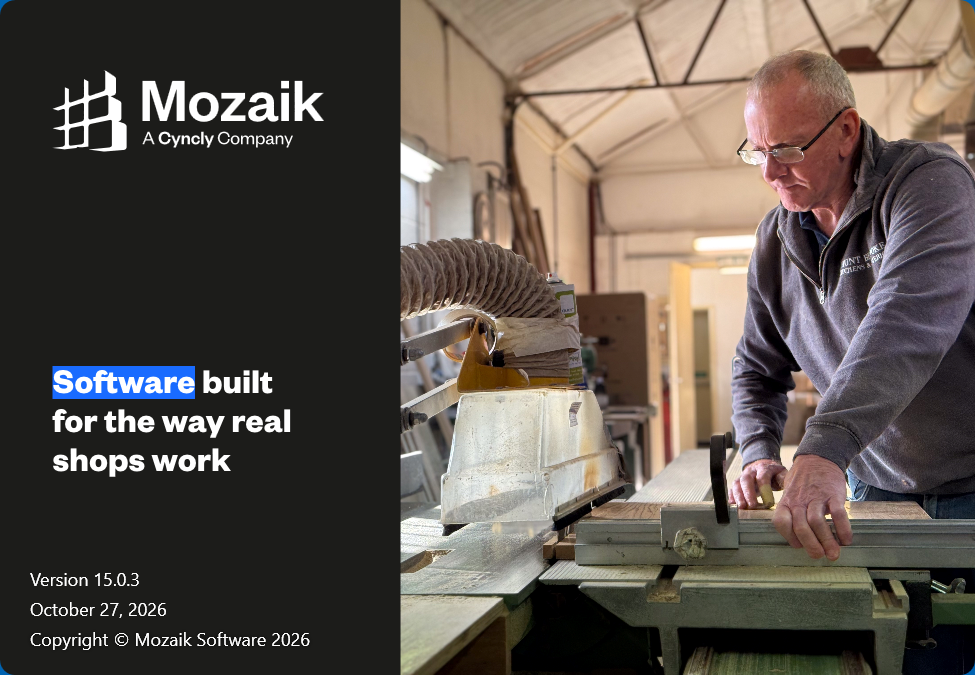
Mozaik Version 15 is the biggest change to the software in years: a new interface, a new licensing model, and new rendering tools.
Mozaik first released Version 15 as an open beta. Check Mozaik’s help centre for the current release and download.
This tutorial walks through how to update Mozaik to Version 15 safely: what to prepare, the order to update your computers in, and what to check afterwards. It is written for cabinet and millwork shops that run Mozaik every day and cannot afford a stalled design desk.
In this tutorial:
- What is new in Mozaik Version 15
- Before you update
- How to update Mozaik to Version 15, step by step
- After the update
What is new in Mozaik Version 15
According to Mozaik’s own announcement and trade coverage of the Version 15 preview, the update includes:
- A rebuilt platform: the front end and back end were rebuilt, with a revamped user interface.
- New licensing: Version 15 uses a sign-in licensing system with your Cyncly account. Cyncly is the company behind Mozaik.
- Rendering and viewing: AI rendering and a 3D viewer.
- Display and usability: sharper display on high-resolution monitors, a dark mode, and planned multi-language support.
Sources: Mozaik Help Centre: Mozaik Version 15 and Wood Industry: Mozaik Version 15 preview.
Before you update
A major version change is not the moment to improvise. Prepare these first:
- Back up your Mozaik folder. Mozaik’s own update instructions say to back up your entire Mozaik folder on your C drive before you install a new version. Copy it somewhere other than the computer you are updating.
- Have your Cyncly account ready. Version 15 licensing works by signing in with a Cyncly account, so make sure you know the login before you start.
- Finish or save open jobs. Close every job you are working on, on every computer.
- Plan for every seat. Mozaik’s instructions say to update every device that runs Mozaik, so plan a time when you can update them all together.
- Check system requirements. Confirm your computers meet the Version 15 requirements in Mozaik’s help centre before you begin.
How to update Mozaik to Version 15, step by step
- Back up. Copy your entire Mozaik folder from the C drive to an external drive or network location.
- Close Mozaik on all computers. Mozaik support advises closing the software on every computer (seat) before an update.
- Get the Version 15 installer. When a new version is available, Mozaik shows an in-app notification you can use to download and launch the update. You can also find the download through Mozaik’s Installation & Updates help section.
- Update the primary computer first. If your shop runs Mozaik on several computers, run the installer on the primary computer first and follow the on-screen prompts.
- Sign in with your Cyncly account. Version 15 uses Cyncly account sign-in for licensing.
- Update every other computer. Repeat the installation on each remaining seat so every device runs the same version.
You can watch the official Mozaik video on YouTube as well:
After the update
Check a real job
Before your team goes back to full production, open a recent job and check that it looks and behaves as expected: the cabinets, materials, drawings and reports you rely on. Keep your backup until you are sure everything has carried over.
Learn the new interface
A rebuilt interface means menus and workflows move. Give the team time with it before a deadline, not during one. Mozaik’s help centre is the place for official documentation and support.
Need design help while your team learns Version 15?
Atlantis Designs designs cabinetry in Mozaik for cabinet and millwork shops, so your floor keeps producing while your team settles into the new version. See design services for millwork shops, more Mozaik and AutoCAD tutorials, or contact us.

Leave a Reply